How to install the App on Android devices
The following steps do not work in an app browser, e.g. within the Facebook or Pinterest app - if you have opened our website or app in it, please carry out the following steps in a normal browser (e.g. Chrome).
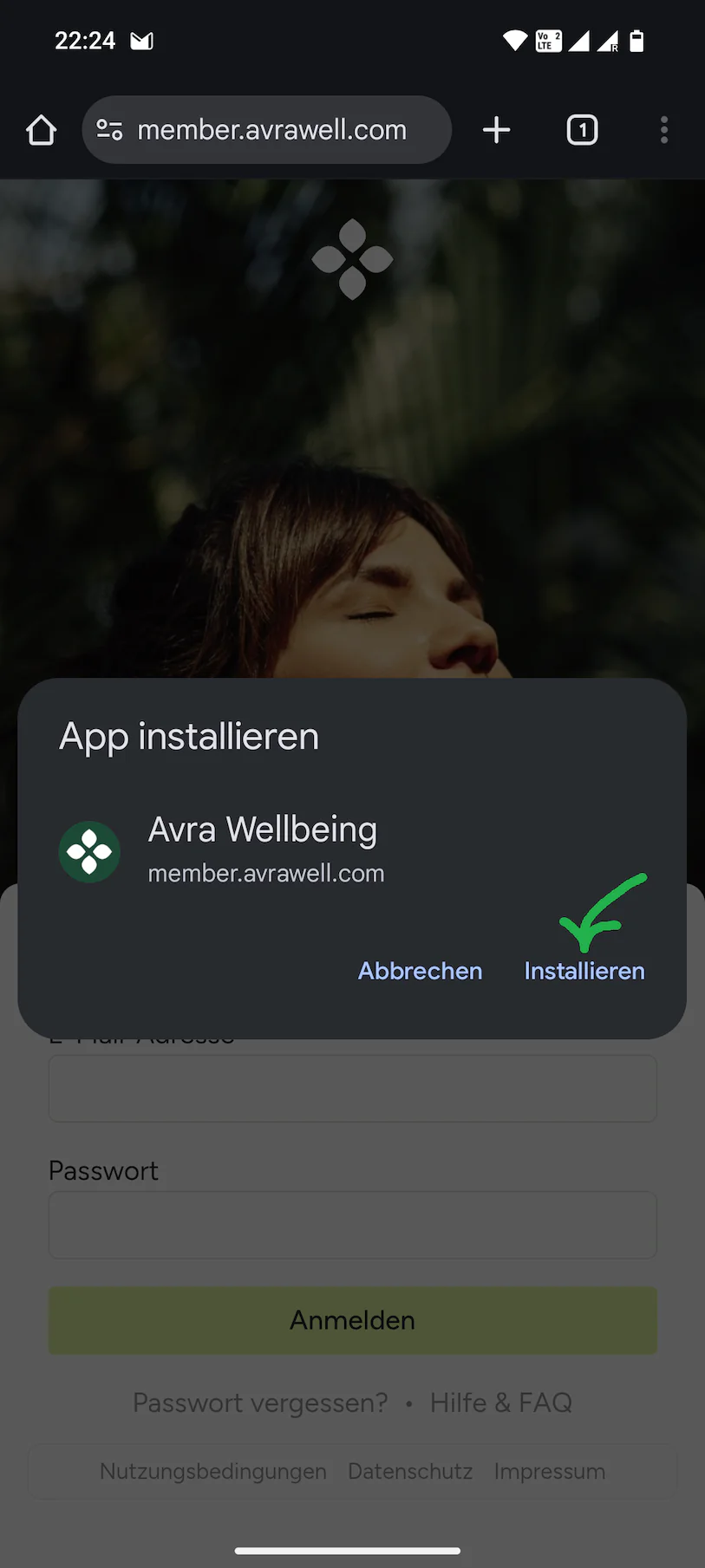
Our Avra Wellbeing app can be installed without any problems. First open https://member.avrawell.com with Chrome or your default browser. On your first visit, you may be prompted to install the app directly via a browser message, e.g. “Add Avra to your home screen”.
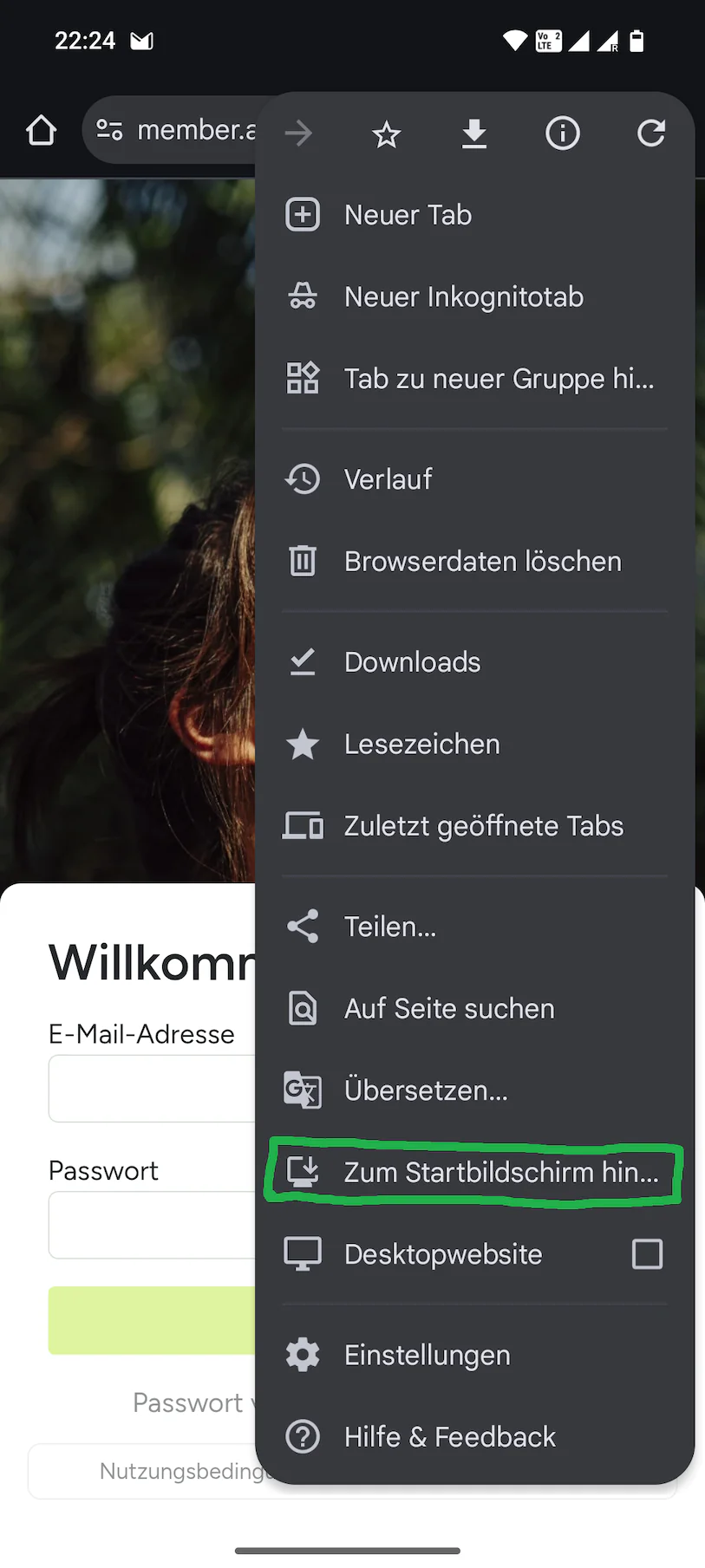
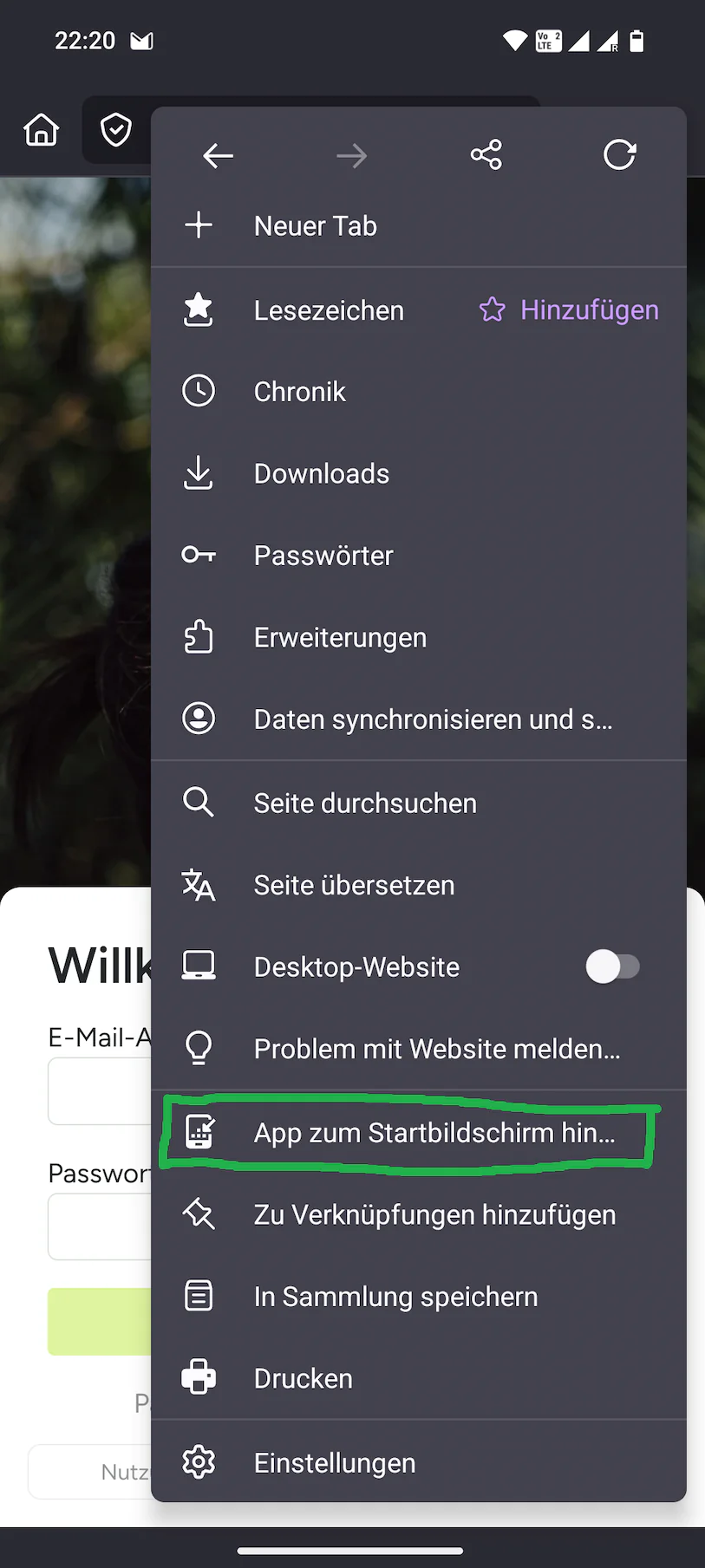
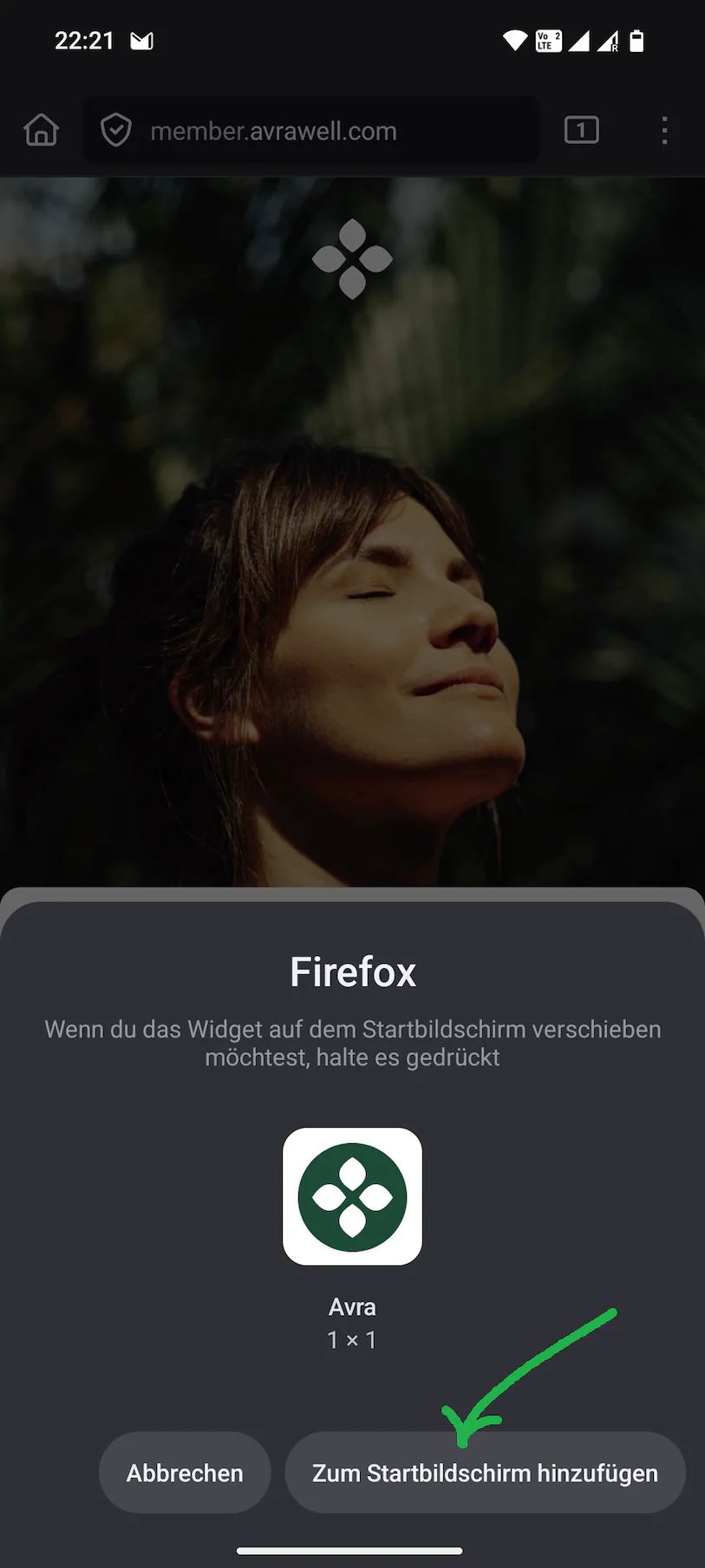
Otherwise, you can start the installation at any time via the browser menu and “Add to home screen” / “Install app”.
The app can then be used from your home screen like an app from the Playstore.
The labels look slightly different depending on the browser, device and current system updates. Here are some examples.
1. Chrome
2. Firefox
3. Samsung Internet
At the moment (July 2026), the Samsung Internet browser does not permit an installation on your device from this browser. This applies to all apps that can be installed from the browser. The error is on the Samsung side.
The solution: Use a browser such as Chrome or Firefox to install the app. This is possible on every Samsung device. See the instructions above.